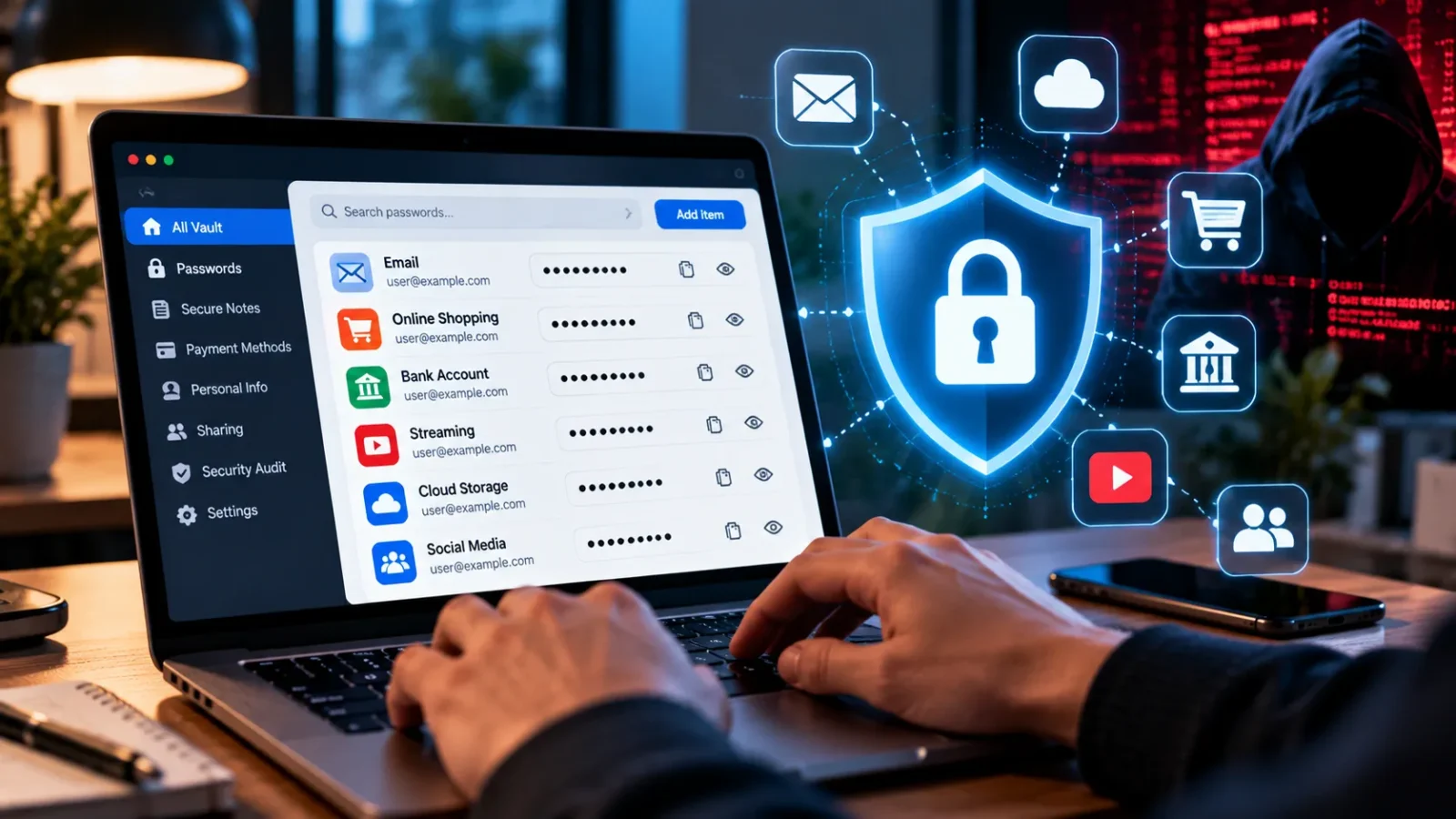
Last updated: November 3, 2026.
If you still reuse one password with a few numbers tacked on for every site, you are not alone. Most people do, and it is why one leaked account so often turns into three or four compromised ones. The fix is not complicated, but it means giving up a habit that feels convenient right up until it is not.
A password manager protects your data online by generating a long, unique password for every account, storing it in an encrypted vault and filling it in for you. Unique passwords everywhere, instead of one password reused everywhere, close the biggest hole in most people’s security.
Key takeaways
- A password manager gives every account a unique password and fills it in for you.
- Your master password is the one you must remember. Make it a long passphrase and never reuse it.
- Even good providers have had breaches. A strong master password and two-factor authentication limit the damage.
- Choose a provider with independent security audits and a clear zero-knowledge design.
- Be careful with providers that face government restrictions, such as Kaspersky in the US.
What Is a Password Manager?
A password manager is software, an app, a browser extension or both, that creates strong passwords, stores them in an encrypted vault and fills them in when you log in. Instead of remembering dozens of passwords, you remember one. Password management tool and password manager mean the same thing.
What Does a Password Manager Do?
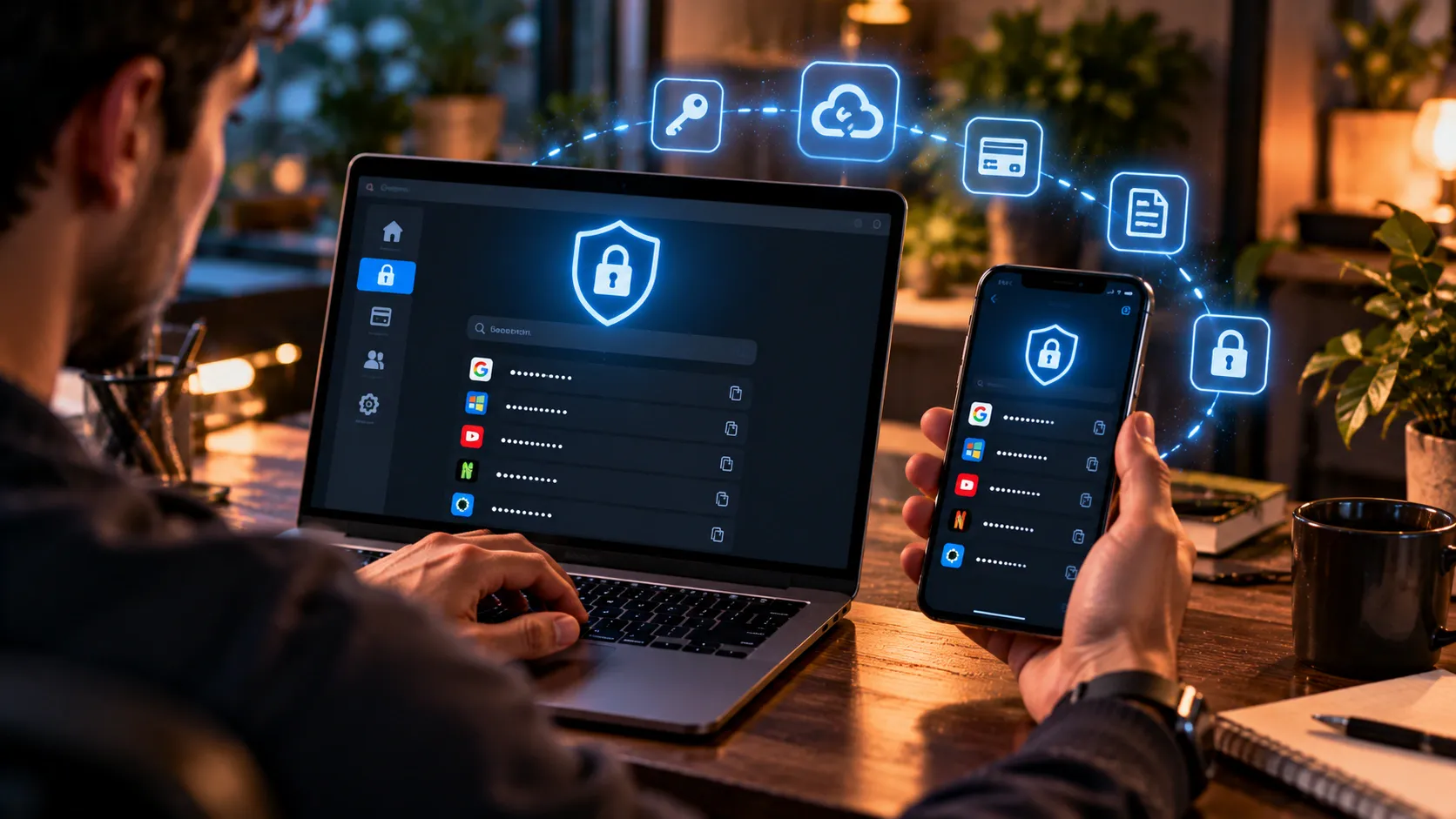
- Generates passwords: long random strings you would never invent yourself.
- Stores them securely: encrypted, so even the company cannot read your passwords in a well-designed system.
- Auto-fills logins: it recognizes the site or app and fills in the right details.
- Flags weak or reused passwords: most scan your vault and show which ones to change.
- Alerts you to breaches: it checks your logins against known breach lists.
- Stores more than passwords: secure notes, payment cards, ID documents and Wi-Fi passwords.
How Your Data Is Stored in the Vault
Reputable password managers use AES-256 encryption and a zero-knowledge model: your vault is encrypted and decrypted on your device with a key derived from your master password, and the company stores only the scrambled version.
The 2022 LastPass breach shows what that does and does not protect. As Malwarebytes reported, attackers took copies of customers’ vaults, and part of the stolen data, including website URLs, was not encrypted. The passwords inside the vaults stayed encrypted, but because attackers had copies, they could keep trying to guess master passwords offline for as long as they liked. Once a master password is cracked, everything in that vault is readable. Changing your master password afterward does not help against a copy they already hold.
The lesson is not that password managers are unsafe. It is that a short or reused master password is the weak link, and that the strength of that one password decides how well your vault holds up if a provider is ever breached.
Why Use a Password Manager?
Nobody can memorize 80 strong, unique passwords, so people reuse a few and make them predictable. Then one breach at a random shopping site exposes your email, bank and everything else sharing that password. A password manager removes the trade-off between secure and memorable.
Benefits of a Password Manager

- Every account gets a unique password, so one breach cannot cascade.
- You stop reusing weak, memorable passwords.
- Autofill helps against phishing, because a manager will not fill your login on a lookalike site with the wrong address.
- You save time on resets and typing long passwords on a phone.
- Most let you share a login with family without showing the password.
- You get one secure place for cards, IDs, notes and Wi-Fi passwords.
Are Password Managers Safe?
Reputable password managers are safer than the habits most people have without one, such as reusing a few passwords or keeping them in a plain notes app. The US cybersecurity agency CISA recommends using a password manager as part of its strong passwords guidance. Safe is not the same as risk-free, though:
- Your master password is the weak point. If it is short, guessable or reused, the encryption matters much less.
- Phishing still works if you type credentials into the wrong place by hand.
- Providers are targets. Choose one with independent audits and a transparent record, and turn on two-factor authentication.
Browser-Saved Passwords vs a Dedicated Password Manager
Chrome, Safari and Edge can save passwords, and that is better than nothing. But browser storage is usually tied to one browser or ecosystem, has weaker cross-platform support and fewer breach and password-health tools. If you use several browsers or a mix of devices, a standalone manager usually syncs more reliably and shows your overall password health in one place.
Is Kaspersky Password Manager Safe?
This needs a more careful answer than the technical one. Kaspersky Password Manager uses strong encryption in the same way other managers do. But the US Department of Commerce banned Kaspersky’s cybersecurity and antivirus products in the United States. According to Help Net Security’s report, Kaspersky could not enter new agreements with US persons after July 20, 2024, and had to stop delivering updates in the US after September 29, 2024. Commerce encouraged existing users to transition to other vendors. If you are in the US, check whether the product still receives updates, and consider a manager that does. Software that stops updating becomes a security risk of its own, as our guide to software update benefits explains.
Whichever provider you consider, look for independent third-party audits, a clear explanation of a zero-knowledge design, and a transparent breach history.
The One Password You Still Need to Remember
Your master password unlocks the whole vault. Every other password is generated and stored for you.
- Make it long, not complicated. A passphrase of several unrelated words is stronger and easier to remember than a short jumble of symbols.
- Never reuse it anywhere else.
- Know the recovery options before you need them. Some providers offer a recovery key or trusted contacts. Some strict zero-knowledge providers cannot recover a lost master password at all. Check this before you commit.
Password Managers and Passkeys
Passkeys let you sign in with your fingerprint, face or device PIN instead of typing a password. They resist phishing better than passwords, and most major password managers now store and sync passkeys alongside your regular logins. They are not a full replacement yet, because many sites still use passwords, so you will likely use both for a while.
How to Choose a Password Manager
- Confirm it uses zero-knowledge, AES-256 encryption, stated clearly and not buried in a support article.
- Look for independent security audits, not only the company’s own claims.
- Check support for every device and browser you use.
- Learn the recovery policy if you forget your master password.
- Look for breach monitoring and password health scoring.
- Decide between free and paid. Free tiers usually cover basic use, and paid plans add family sharing and extra storage.
- Check the company’s country and any legal restrictions that apply to you.
How to Start Using a Password Manager
- Pick a provider and install the app and browser extension.
- Create a long, unique master password. Write it down once and store the paper somewhere physically safe as a backup.
- Import your saved browser passwords or add them manually.
- Turn on two-factor authentication for the password manager itself.
- Replace passwords for your most important accounts first: email, banking and anything used for account recovery.
- Work through the weak and reused password report gradually.
A password manager is one layer. Pair it with regular updates and an understanding of who attacks accounts. Read our guides on types of hackers and Android vs iPhone security. If your details have already leaked, see how to remove your information from the internet.
Frequently Asked Questions
Are password managers safe to use?
Reputable ones with zero-knowledge AES-256 encryption are safer than reusing passwords. The real risks are a weak master password and a low-quality provider.
What is the one password I still need to remember?
Your master password. It unlocks your whole vault and only lives in your memory.
What happens if my password manager is breached?
If your vault is encrypted and your master password is long and unique, attackers face a very hard guessing job. A weak master password raises the risk a lot. Turn on two-factor authentication, change important passwords if the provider advises it, and read the provider’s breach notice.
Is it safe to store passwords in my browser?
It is better than reusing passwords, but a dedicated manager usually offers better cross-device support and password-health tools.
Is Kaspersky Password Manager safe?
Technically it uses strong encryption, but the US ban on Kaspersky products means US users should check whether it still receives updates and consider alternatives.
Should I use a free or paid password manager?
A free tier is usually fine for basic use on one device type. Paid plans add family sharing and extra features.
The Bottom Line
A password manager does not make you invincible online, but it closes the most common gap: reused, weak, guessable passwords. Generate a unique password for every account, protect the vault with one strong master passphrase, and turn on two-factor authentication. The one thing left for you to remember is that single passphrase.

[…] How to protect your data with a password manager: unique passwords for every financial account. […]
[…] reuse an important password on any manga site. A password manager makes that […]
[…] to read. This is the same habit that helps you avoid oversharing in other places, as our guide on protecting your data online […]
[…] software update benefits explains why keeping your system current closes many of these holes, and a password manager keeps one stolen password from unlocking your other accounts. If you read manga too, our list of […]
[…] site, treat the email and password as exposed. If you reuse that password anywhere, change it. A password manager gives each site its own password so one leak does not unlock your other […]
[…] you typed a password, change it from a clean device and turn on two-factor authentication. A password manager helps you use a different password everywhere. If you entered card details, call your card […]