If you’re still reusing the same password with a few extra numbers tacked on for every site, you’re not alone. Most people do this, and it’s exactly why one leaked account so often turns into three or four compromised ones. The fix isn’t complicated, but it does mean giving up a habit that feels convenient right up until it isn’t.
A password manager protects your data online by generating a long, unique, hard-to-guess password for every account you have, storing them in an encrypted vault, and filling them in automatically. Hence, you never have to type or remember them yourself. That one change, unique passwords everywhere, instead of one password reused everywhere, closes the single biggest hole in most people’s online security.
Below, we’ll cover what a password manager is, what it does day to day, how secure the good ones really are, and the one password you still have to keep in your own head no matter which tool you pick.
What is a Password Manager?
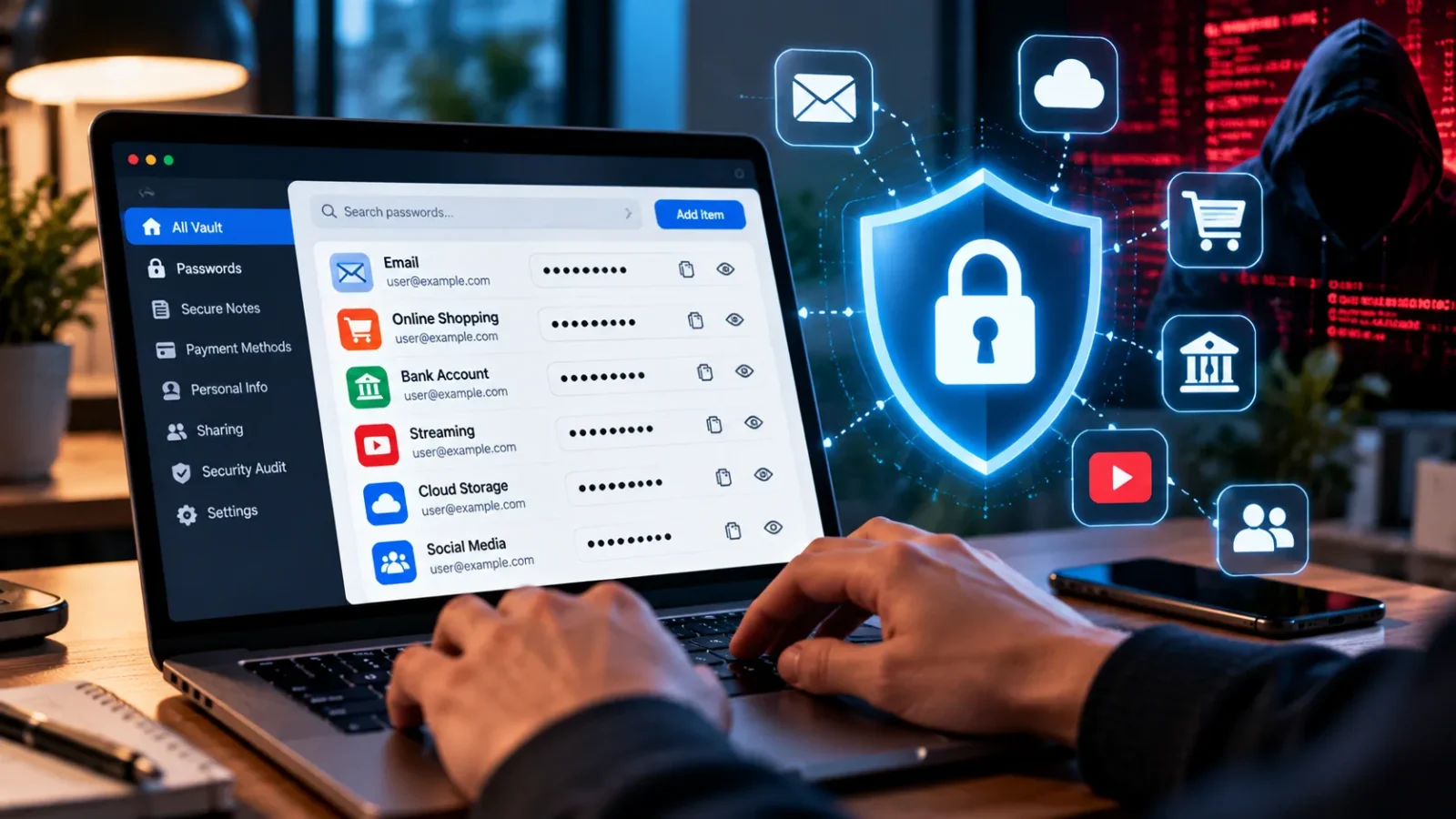
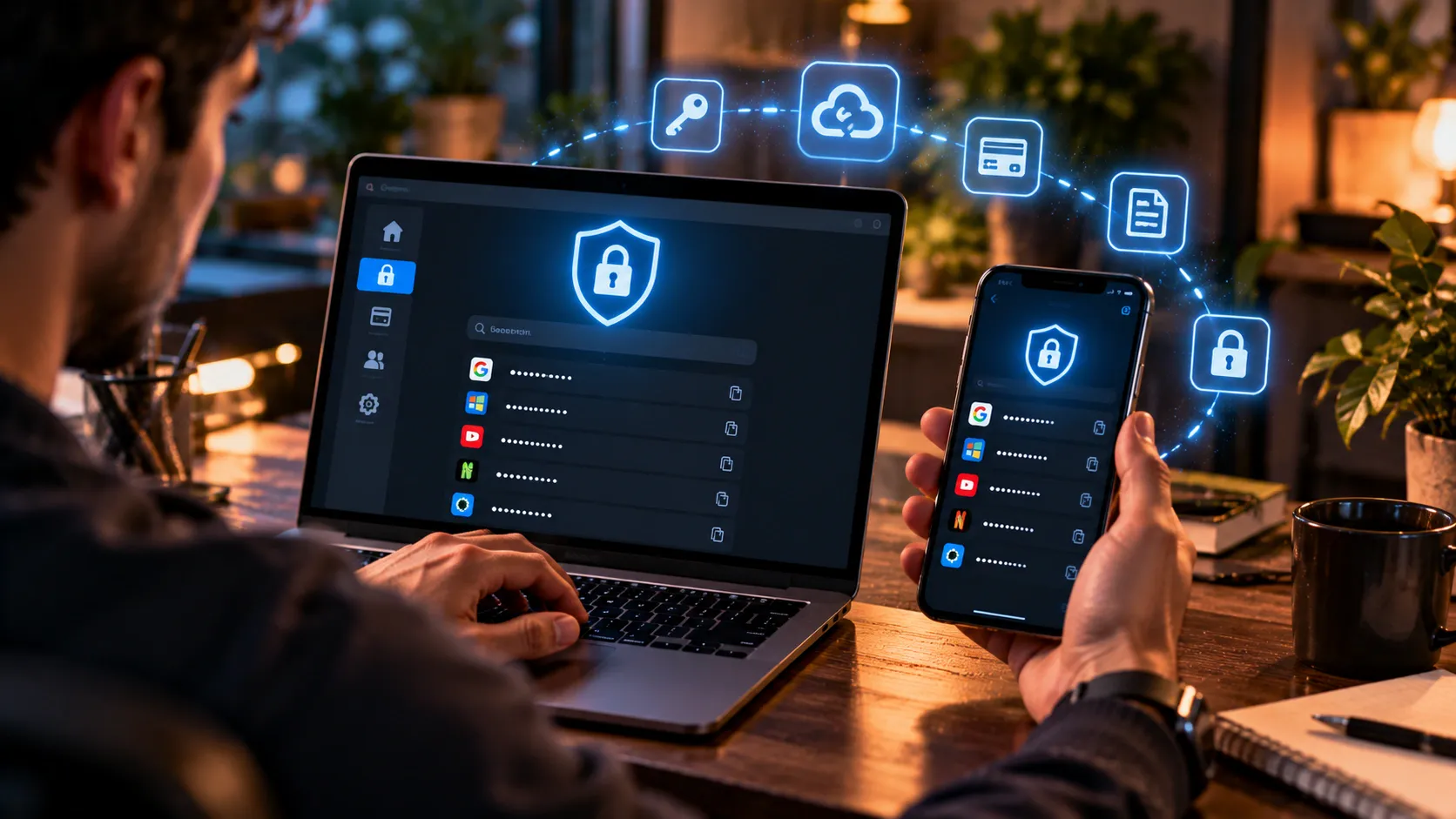
A password manager is software, either an app, a browser extension, or both, that creates strong passwords for you, stores them in an encrypted vault, and fills them in automatically when you log in to a site or app. Instead of remembering dozens of passwords, you remember one.
That’s really the whole idea. Some people also ask what a password management tool is, and it’s the same thing described more formally. “Password management tool” and “password manager” are used interchangeably, so don’t let the slightly different wording confuse you if you see both while researching.
What Does a Password Manager Do, Exactly?
- Generating passwords: Long, random strings like xT9!mQ2vL#8pR4k that you’d never come up with, and never have to, on your own
- Storing them securely: Encrypted, so even the company running the password manager can’t read your actual passwords.
- Auto-filling logins: Recognizing the site or app you’re on and filling in the right username and password instantly
- Flagging weak or reused passwords: Most modern managers scan your saved logins and tell you exactly which ones need changing
- Alerting you to breaches: Checking your stored logins against known data breach lists and warning you if one of your accounts shows up
- Storing more than passwords: Secure notes, payment card details, ID documents, and Wi-Fi passwords, in many cases
That last point surprises people. A modern password manager has quietly become a general-purpose secure vault for anything sensitive you don’t want sitting in a plain text note on your phone.
Digital Password Vault: How Your Data is Actually Stored
Reputable password managers use AES-256 encryption, the same standard banks and governments rely on, to scramble your data before it ever leaves your device.
Most also run on a zero-knowledge model, meaning encryption and decryption happen locally on your device using a key derived from your master password; the company storing your encrypted data never has the key to unlock it.
Even if their servers were breached, an attacker would walk away with unreadable, scrambled data, not your actual passwords.
That last point isn’t theoretical. In 2022, LastPass suffered a serious breach in which attackers stole encrypted customer vault data.
What actually happened afterward is the part worth paying attention to: because the vaults were encrypted with a key only each user’s own master password could unlock, the attackers couldn’t read the passwords inside without cracking that encryption individually, account by account.
It was a genuinely bad breach and a real wake-up call for the whole industry, but it also showed exactly why zero-knowledge encryption exists in the first place, and why a strong, unique master password matters so much.
Purpose of a Password Manager
At their core, password manager tools solve one specific human problem: nobody can memorize 80 different strong, unique passwords. So people don’t.
They reuse the same one or two passwords everywhere, or they pick something memorable and predictable, and both habits make it easy for one data breach at a random shopping site to compromise your email, your banking, and everything else that shares the same password.
A password manager removes the need to make that trade-off between “secure” and “memorable” at all. It generates and remembers the secure part, so you never have to compromise.
Benefits of a Password Manager
The benefits of a password manager go a bit further than most people expect before they actually start using one:

- Every account gets a genuinely unique password, so a breach at one site can’t cascade into your other accounts
- You stop reusing weak, memorable passwords out of sheer necessity
- Autofill protects against some phishing attempts, since a password manager won’t autofill your credentials on a lookalike site with the wrong URL, even if it looks identical to the real one
- You save real time: No more “forgot password” resets, no more typing out long passwords on a phone keyboard
- Secure sharing: Most managers let you share a login with a family member or coworker without ever showing them the actual password
- One place for everything sensitive, like cards, IDs, notes, Wi-Fi passwords, not just logins
Are Password Managers Safe? How Secure Are Password Managers?
Yes, reputable password managers are genuinely safer than the alternative most people use: reusing a handful of weak passwords across dozens of sites, or keeping them in an unencrypted notes app.
How secure are password managers compared to that? Considerably. AES-256 encryption paired with a zero-knowledge architecture means your stored data is protected even if the provider’s servers are compromised, as the LastPass incident above actually demonstrated in practice.
That said, “safe” isn’t the same as “risk-free,” and it’s worth being honest about where the real risk sits:
- Your master password is the weak point. If it’s short, guessable, or reused from another account, the encryption protecting everything else matters much less.
- Phishing still works if you’re not paying attention. A password manager won’t autofill on a fake site, but a determined attacker can still trick you into manually typing credentials somewhere you shouldn’t.
- Not every “password manager” is built the same way. Free, obscure, or poorly reviewed tools may not use real zero-knowledge encryption at all. Stick to established providers with independent security audits.
The honest bottom line: the security risk of using a well-reviewed, audited password manager is genuinely small, and it’s smaller than the risk of the password habits most people have without one.
Browser-Saved Passwords Vs a Dedicated Password Manager
Chrome, Safari, and Edge all offer to save your passwords, and that built-in option is genuinely better than no password manager at all.
But it has real limitations compared to a dedicated password manager: browser-based storage is usually tied to one browser or ecosystem, offers weaker cross-platform support, and typically has fewer breach-monitoring and password-health features than a dedicated app.
If you use more than one browser, or a mix of devices across different operating systems, a standalone password manager usually syncs more reliably and gives you a clearer picture of your overall password health in one place.
Neither option is unsafe on its own. It’s really a question of convenience, cross-device consistency, and how much visibility you want into your own password hygiene.
Is Kaspersky Password Manager safe?
Yes. Kaspersky Password Manager uses AES-256 encryption and follows the same zero-knowledge principles described above, and Kaspersky as a company has a long operating history in the security software space.
It’s a legitimate, functional password manager, on the same technical footing as other well-known names in the category.
Worth knowing regardless of which tool you’re considering: no single provider, Kaspersky included, should be trusted purely on brand recognition.
Look for independent third-party security audits, a clear explanation of the encryption model (zero-knowledge specifically, not just “we encrypt your data”), and a transparent breach-history track record before trusting any provider with your full password vault.
That standard applies the same way whether you’re looking at Kaspersky or anything else in this category.
What Is The One Password You Still Need To Remember When Using a Password Manager?
Your master password, the single password that unlocks your entire encrypted vault. Every other password gets generated and stored for you, but this one lives only in your head (and, ideally, nowhere else).
A few things worth knowing about it specifically:
- Make it long, not complicated. A memorable passphrase like horse-battery-lamp-window-42 is both stronger and easier to actually remember than a short jumble of symbols.
- Never reuse it anywhere else. This is the one password where reuse defeats the entire purpose of the tool.
- Know your recovery options before you need them. Most reputable password managers offer some form of account recovery (a recovery key, trusted contacts, or biometric backup). Still, a few strict zero-knowledge providers genuinely cannot recover a lost master password at all, since they never had access to it in the first place. Check this before you commit, not after you’ve forgotten it.
That last point is the real trade-off of zero-knowledge encryption: the same design that keeps the company from ever seeing your data also means that, on some providers, nobody can rescue you if you forget your master password. That’s not a flaw. It’s the whole security model working exactly as intended, but it does mean this one password deserves real care.
Password Managers and Passkeys: What’s Changing
Passkeys are a newer login method, built on the same encryption standards as password managers, that let you sign in using your device’s fingerprint, face scan, or PIN instead of typing a password at all.
They’re not a replacement for a password manager just yet, but most major password managers now store and sync passkeys right alongside your regular passwords, and more websites are adding passkey support every year.
If you start seeing “sign in with a passkey” as an option, it’s a genuinely more phishing-resistant method than even a strong password, and a good password manager will support it without you needing a separate tool.
How to Choose a Password Manager
- Confirm it uses zero-knowledge, AES-256 encryption. This should be stated clearly, not buried in a support article
- Look for independent security audits, not just the company’s own claims
- Check cross-platform support for every device and browser you actually use
- See what happens if you forget your master password. Know the recovery policy upfront
- Check for breach monitoring and password health scoring, since these are genuinely useful, not just nice-to-have extras
- Decide between free and paid. Free tiers are usually fine for basic single-device use; paid tiers add family sharing, more storage, and stronger monitoring.
How to Start Using a Password Manager
- Pick a provider and install the app plus its browser extension
- Create a long, unique master password (and write it down somewhere physically secure, just once, as a backup)
- Import your existing saved passwords from your browser, or add them manually
- Turn on two-factor authentication for the password manager itself, not just the accounts it protects
- Let it generate new, unique passwords for your most important accounts first: email, banking, and anything tied to account recovery
- Review its weak/reused password report and work through it gradually, rather than all at once
Frequently Asked Questions
Are password managers actually safe to use?
Yes, reputable ones with zero-knowledge AES-256 encryption are safe, safer than the password habits most people rely on without one. The real risk comes from a weak master password or an unaudited, low-quality provider, not the concept itself.
What is the one password you still need to remember when using a password manager?
Your master password. It’s the single key that unlocks your entire encrypted vault, and unlike every other password it generates for you, this one only lives in your memory.
Is Kaspersky Password Manager safe?
Yes. It uses AES-256 encryption and zero-knowledge principles similar to other established password managers. As with any provider, it’s worth checking independent audits rather than relying on brand name alone.
The Bottom Line
A password manager doesn’t make you invincible online, but it does close the single most common security gap most people have: reused, weak, guessable passwords.
Generate unique ones for every account, protect them behind one strong master password, and you’ve removed the easiest path an attacker has into your accounts.
The only real work left on your end is remembering one password well; the tool handles everything else for you.